ALL November 2012 students are required to attend lab on the following date:-
Microsoft Excel : 7 Jan 2013, 1400-1800
Microsoft PowerPoint : 8 Jan 2013, 1400-1800
Final Project Presentation : 9 Jan 2013, 1000-1200
Venue : B-01-18 (Computer Lab)
Attendance is COMPULSORY
Students that fail to attend will result in NC status.
TQ for your cooperation =)
Showing posts with label UFS103. Show all posts
Showing posts with label UFS103. Show all posts
Thursday, 3 January 2013

Sunday, 10 June 2012
UFS103 / 201206 - PLANNER
UFS103 - PC COMPETENCY
Classcode: 23-201205D300042
Credit hours : 3
Day/Time : Friday/1400-1600 , Friday/1600-1800 ,
Venue : /B01-18
Student Leader :
ASSESSMENTS EVALUATION
Assignment 1 (10%) : MS. WORD 2007 (PART 1)
Assignment 2 (10%) : MS. WORD 2007 (PART 2)
Assignment 3 (10%) : MS. EXCEL 2007 (PART 1)
Assignment 4 (10%) : MS. EXCEL 2007 (PART 2)
Assignment 5 (20%) : MS. EXCEL 2007 (PART 3)
Final Project Presentation (Group) (40% ) : MS. POWERPOINT 2007
WEEKLY LESSON PLAN
Classcode: 23-201205D300042
Credit hours : 3
Day/Time : Friday/1400-1600 , Friday/1600-1800 ,
Venue : /B01-18
Student Leader :
ASSESSMENTS EVALUATION
Assignment 1 (10%) : MS. WORD 2007 (PART 1)
Assignment 2 (10%) : MS. WORD 2007 (PART 2)
Assignment 3 (10%) : MS. EXCEL 2007 (PART 1)
Assignment 4 (10%) : MS. EXCEL 2007 (PART 2)
Assignment 5 (20%) : MS. EXCEL 2007 (PART 3)
Final Project Presentation (Group) (40% ) : MS. POWERPOINT 2007
WEEKLY LESSON PLAN
| Week 1 | 4/6/2012 | Registration | |
| Week 2 | 15/6/2012 | Introduction | |
| Week 3 | 22/6/2012 | Ms. Word | |
| Week 4 | 29/6/2012 | Ms.Excel (I) | |
| Week 5 | 6/7/2012 | Ms.Excel (II) | |
| Week 6 | 13/7/2012 | Ms. PowerPoint (I) | |
| Week 7 | 20/7/2012 | Ms. PowerPoint (II) | |
| Week 8 | 27/7/2012 | Final Project Presentation (I) | |
| Week 9 | 3/8/2012 | Final Project Presentation (II) | |
| Week 10 | 6/8/2012 | FINAL EXAM (*N/A) | |
| 13/08/2012 | Semester break |
Friday, 3 February 2012
UFS103 / 201201 - PLANNER
UFS103 - PC COMPETENCY
Classcode: 23-201201D100017
Credit hours : 3
ASSESSMENTS EVALUATION
Assignment 1 (10%) : MS. WORD 2007 (PART 1)
Assignment 2 (10%) : MS. WORD 2007 (PART 2)
Assignment 3 (10%) : MS. EXCEL 2007 (PART 1)
Assignment 4 (10%) : MS. EXCEL 2007 (PART 2)
Assignment 5 (20%) : UNDERSTANDING OF MS. OFFICE TOOLS
Final Project Presentation (Group) (40% ) : MS. POWERPOINT 2007
LESSON PLAN
Classcode: 23-201201D100017
Credit hours : 3
ASSESSMENTS EVALUATION
Assignment 1 (10%) : MS. WORD 2007 (PART 1)
Assignment 2 (10%) : MS. WORD 2007 (PART 2)
Assignment 3 (10%) : MS. EXCEL 2007 (PART 1)
Assignment 4 (10%) : MS. EXCEL 2007 (PART 2)
Assignment 5 (20%) : UNDERSTANDING OF MS. OFFICE TOOLS
Final Project Presentation (Group) (40% ) : MS. POWERPOINT 2007
LESSON PLAN
| Week 1 | 30/01/2012 | Introduction | |||||||||||||||||||
| Week 2 | 06/02/2012 | Ms.Word-1 | |||||||||||||||||||
| Week 3 | 13/02/2012 | Ms.Word-2 | |||||||||||||||||||
| Week 4 | 20/02/2012 | Ms.Excel-1 | |||||||||||||||||||
| Week 5 | 26/02/2012 | Ms.Excel-2 | |||||||||||||||||||
| Week 6 | 05/03/2012 | Ms.PP-1 | |||||||||||||||||||
| Week 7 | 12/03/2012 | Ms.PP-2 | |||||||||||||||||||
| MIDTERM | 19/03/2012 | ||||||||||||||||||||
| BREAK | 26/03/2012 | ||||||||||||||||||||
| Week 8 | 02/04/2012 | Presentation-1 | |||||||||||||||||||
| Week 9 | 09/04/2012 | Presentation-2 | |||||||||||||||||||
| Week 10 | 16/04/2012 | Blogging | |||||||||||||||||||
| Week 11 | 23/04/2012 | Ms.Word - 3 | |||||||||||||||||||
| Week 12 | 30/04/2012 | Ms.Excel - 3 | |||||||||||||||||||
| Week 13 | 06/05/2012 | Ms.PP-3 |
| Week 14 | 14/05/2012 |
| FINAL EXAM | 21/05/2012 |
Thursday, 2 February 2012
GENERAL RULES FOR ALL STUDENTS
ATTENDANCE
Attendance for both the lectures and the tutorials is compulsory. Any student not attending a class should provide a medical certificate or a written justification (signed by a parent or guardian in the case of a full-time student). Should a student fail to do so, he/she will be considered truant.
Should a student attendance for a given subject is lower than 70 %, he/she will not be allowed to sit for the final examination. Punctuality is equally important. The lecturer is entitled to refuse entry into the classroom to any student that would present him/herself late (Tolerance +/- 10 min).
ASSESSMENTS
Student's assessments will be evaluated based on the breakdown given in each subjects. Please refer to your subject's label (eg: UFS103/EDS105/EDE124 etc.) for further details.
If a student failed to attend any class or missed any assessment, kindly submit your medical certificate (MC) in the next class. Late submission WILL NOT BE ENTERTAINED and NO ASSESSMENT EVALUATION (lab/quiz/test/midterm/presentation slot) will be conducted for them.
LAB RULES
1. Be respectful, follow your lecturer's instructions, and don't take shortcuts.
2. Please do not bring in any food or drink except just water, which must be stored on the floor.
3. Do and finish your own given assignment, and no body is allowed to surf any irrelevant web sites or play computer games.
4. Keep your desk free from any disturbance objects (eg. bags, pencil case, water bottles etc)
5. Stay, work and talk in your own work station area. Don't leave your work area unless instructed by the lecturer.
6. CLEANUP: Clean your work area before leaving!
WISH YOU GUYS ALL THE BEST & HAPPY LEARNING =)
Wednesday, 30 November 2011
Introduction to basic features in Ms. Word 2007
UFS103 PC COMPETENCY - SEPT2011
Member:
Member:
1. How to do paragraph setting (JOKER1 23-20110912345)
2. How to set page margin (JOKER2 23-20110912346)
3. How to insert WordArt (JOKER3 23-20110912347)
4. How to insert Watermark (JOKER4 23-20110912348)
5. How to check Spelling & Grammar (JOKER5 23-20110912349)
Monday, 21 November 2011

Sunday, 20 November 2011
UFS103/201111 - PLANNER
UFS103 - PC COMPETENCY
Credit hours : 3
Group A
Classcode: 23-201111D040001
Day/Time: Monday (9-1pm)
Group B
Classcode: 23-201111D040002
Day/Time: Monday (2-6pm)
Click here for you Final Project score-sheet.
Lesson Plan:-
Credit hours : 3
Group A
Classcode: 23-201111D040001
Day/Time: Monday (9-1pm)
Group B
Classcode: 23-201111D040002
Day/Time: Monday (2-6pm)
Click here for you Final Project score-sheet.
Lesson Plan:-
| WEEK | DATE | COMPONENTS | ASSESSMENTS | MARKS | ||||
| Week 7 | Introduction | |||||||
| Week 8 | Ms.Word | Assignment 1,2 | 20% | |||||
| Week 10 | 05/12/2011 | Ms.Excel | Assignment 3,4 | 20% | ||||
| Week 11 | 12/12/2011 | Ms.Excel | Assignment 5 | 20% | ||||
| Week 12 | 19/12/2011 | Ms.PowerPoint | ||||||
| Week 13 | 26/12/2011 | Ms.PowerPoint | ||||||
| Week 14 | 02/01/2012 | Presentation | Final Project | 40% | ||||
| TOTAL | 100% |
Friday, 21 October 2011
UFS103/201109 - PLANNER
UFS103 - PC COMPETENCY
Credit hours : 3
Classcode: 23-201108D270029
Group A - Tuesday (9-1pm)
Assignment 1 : 10%(20 Sept 2011)
Assignment 2 : 10%(4 Oct 2011)
Assignment 3 : 10%(11 Oct 2011)
Assignment 4 : 10%(18 Oct 2011)
Assignment 5 : 20% (25 Oct 2011)
Final Project : 40% (23 Nov - 14 Dec 2011)
Classcode: 23-201108D270035
Group B - Wednesday (2-6pm)
Assignment 1 : 10%(21 Sept 2011)
Assignment 2 : 10%(5 Oct 2011)
Assignment 3 : 10%(12 Oct 2011)
Assignment 4 : 10%(19 Oct 2011)
Assignment 5 : 20%(9 Nov 2011)
Final Project : 40% (23 Nov - 14 Dec 2011)
Click here for your Final Project score-sheet.
Credit hours : 3
Classcode: 23-201108D270029
Group A - Tuesday (9-1pm)
Assignment 1 : 10%
Assignment 2 : 10%
Assignment 3 : 10%
Assignment 4 : 10%
Assignment 5 : 20%
Final Project : 40% (23 Nov - 14 Dec 2011)
Classcode: 23-201108D270035
Group B - Wednesday (2-6pm)
Assignment 1 : 10%
Assignment 2 : 10%
Assignment 3 : 10%
Assignment 4 : 10%
Assignment 5 : 20%
Final Project : 40% (23 Nov - 14 Dec 2011)
Click here for your Final Project score-sheet.
Monday, 26 September 2011
MS. Word - Assignment 1
Here is a guide to assist students in completing MS. Word - Assignment 1
Step 1: Adding border
On "page border" tab:
4--> Setting : Box
6--> Color : Green
7--> Width : 1 1/2pt
8--> Apply to : This section - First page only

Step 2: Insert header & footer
1--> Insert tab
2--> Click on Header
3--> Choose Blank Header
With Design tab active:-
4--> Tick on Different first page
5--> Tick on Show document text
6--> Header from top : 0.5"
Footer from bottom : 0.5"
8--> Click Page number
9--> Choose Bottom of page
10--> Choose Plain Number 1

Step 3: Insert Word Art
1--> Insert tab
2--> Click on Word Art
4--> Font : Monotype Corsiva
5--> Size : 48
7--> Click OK
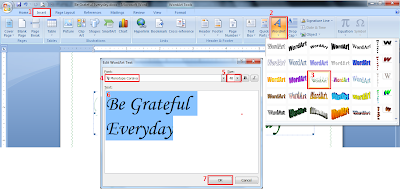
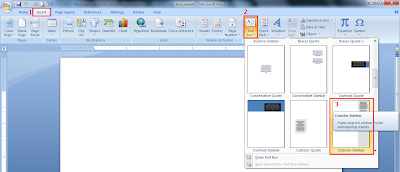
Step 4: Insert text box
1--> Insert tab
2--> Click on Text Box
3--> Choose Cubicles Sidebar
With text box active, go to Format tab and set the Shadows Effect accordingly.
Step 1: Adding border
On "page border" tab:
4--> Setting : Box
6--> Color : Green
7--> Width : 1 1/2pt
8--> Apply to : This section - First page only

Step 2: Insert header & footer
1--> Insert tab
2--> Click on Header
3--> Choose Blank Header
With Design tab active:-
4--> Tick on Different first page
5--> Tick on Show document text
6--> Header from top : 0.5"
Footer from bottom : 0.5"
8--> Click Page number
9--> Choose Bottom of page
10--> Choose Plain Number 1

Step 3: Insert Word Art
1--> Insert tab
2--> Click on Word Art
4--> Font : Monotype Corsiva
5--> Size : 48
7--> Click OK

Step 4: Insert text box
1--> Insert tab
2--> Click on Text Box
3--> Choose Cubicles Sidebar
With text box active, go to Format tab and set the Shadows Effect accordingly.

Saturday, 24 September 2011
Create a blog - A step by step guide for beginners (2)
Now, let's try our first posting
Step 1: Type the following: (* In the text editor, you may use the 'numbered list' function on the top)
Title: 1st Assignment: Things I like to do
Things I like to do:

Step 2: Now, let's try insert an image. Click on the "insert image" button, and browse your desired image and click "Add selected"

Step 3: Click on the "preview" button to preview your blog. This will open a new tab for your preview. You can just close this page when you are done, and go back to your previous page.
Step 4: After editing and correction whatever that's necessary, you can publish your post by clicking the "publish" button.

Step 1: Type the following: (* In the text editor, you may use the 'numbered list' function on the top)
Title: 1st Assignment: Things I like to do
Things I like to do:
- Sleeping
- Reading
- Dreaming

Step 2: Now, let's try insert an image. Click on the "insert image" button, and browse your desired image and click "Add selected"

Step 3: Click on the "preview" button to preview your blog. This will open a new tab for your preview. You can just close this page when you are done, and go back to your previous page.

Step 4: After editing and correction whatever that's necessary, you can publish your post by clicking the "publish" button.

Create a blog - A step by step guide for beginners (1)
This is a very simple tutorial in creating a blog for a total beginner. In this tutorial we gonna create a blog in blogger.com
Step 1: Go to this link here and click on get started.

Step 2: Fill in your details.
If you don't have an account yet, you may opt for a new gmail account here.

Step 3: Next you have to name your blog. Your blog title will be appeared at your window's title. Don't worry, you still can change your blog title and address later.

Step 4: Choose your template and click continue.

Voila! Now you have created your blog, so let's start posting
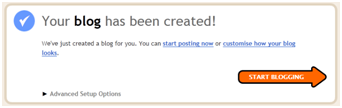
Click here to start posting~
Step 1: Go to this link here and click on get started.
Step 2: Fill in your details.
If you don't have an account yet, you may opt for a new gmail account here.
Step 3: Next you have to name your blog. Your blog title will be appeared at your window's title. Don't worry, you still can change your blog title and address later.
Step 4: Choose your template and click continue.
Voila! Now you have created your blog, so let's start posting
Click here to start posting~
Subscribe to:
Posts (Atom)